The fastest way to spot a weak AI presentation tool is to check its output format and editing model. If your slides are PNG-only images, every edit becomes painful. In this guide, we compare editable, object-based workflows vs PNG-only outputs and show how Presentia.ai keeps slides editable in Edit mode, then exports a pixel-perfect PPTX/PDF when you are ready to share.
PNG-Only Slides: The Practical Limitations
No text edits: you cannot fix typos, numbers, or names without regenerating.
Accessibility suffers: screen readers cannot read text embedded in an image.
Localization is slow: translating a deck means redoing every slide image.
Brand tweaks are hard: swapping fonts/colors/spacing becomes manual redesign.
One important nuance: some tools still export a .pptx file, but each slide is just a single image inside PowerPoint. That might be fine for presenting, but it is still PNG-only from an editing perspective.
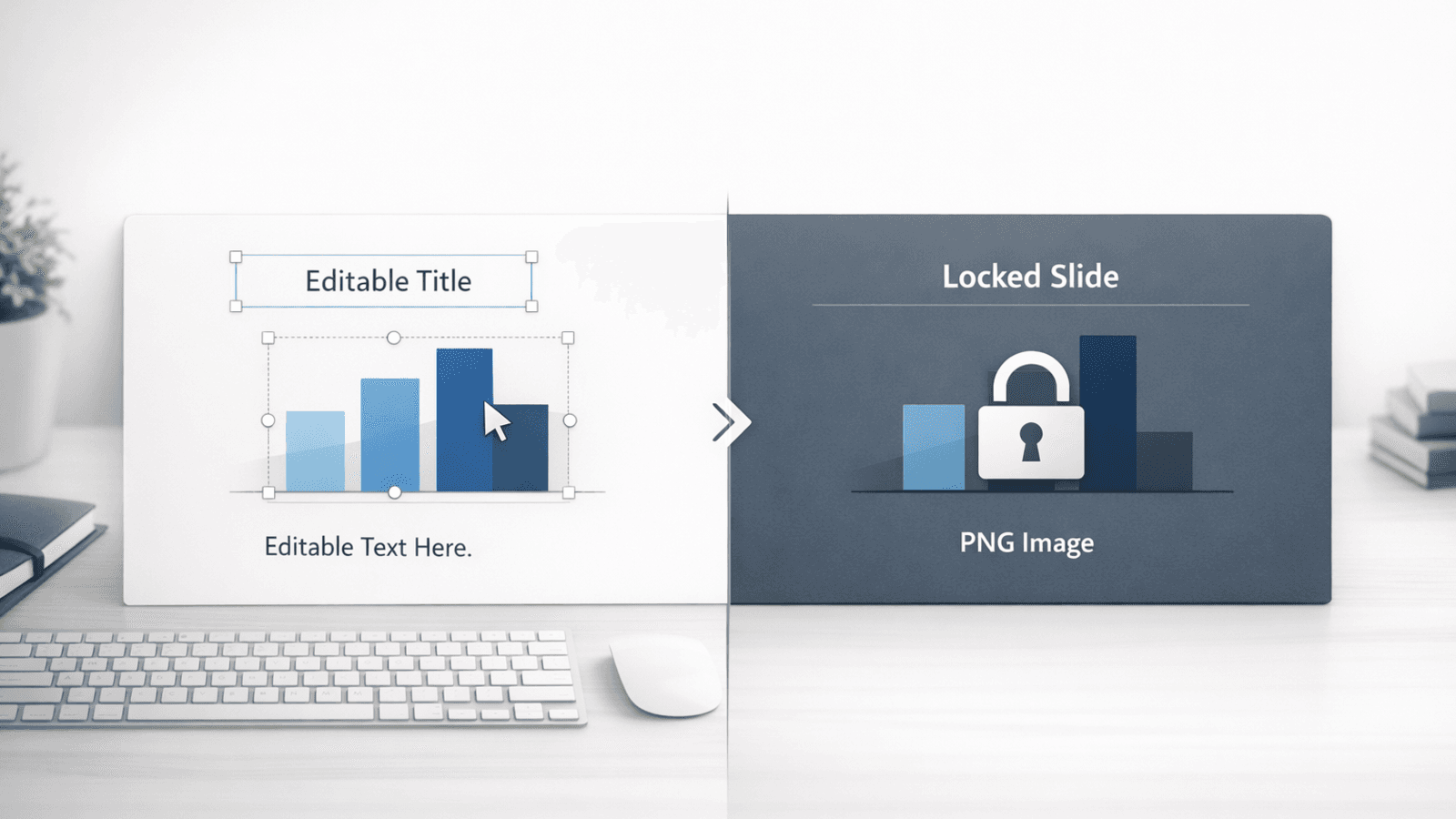
Editable objects let you change text and layout. PNG-only outputs lock everything in.
Editable Slides: Object-Based Editing vs Screenshot-Based Slides
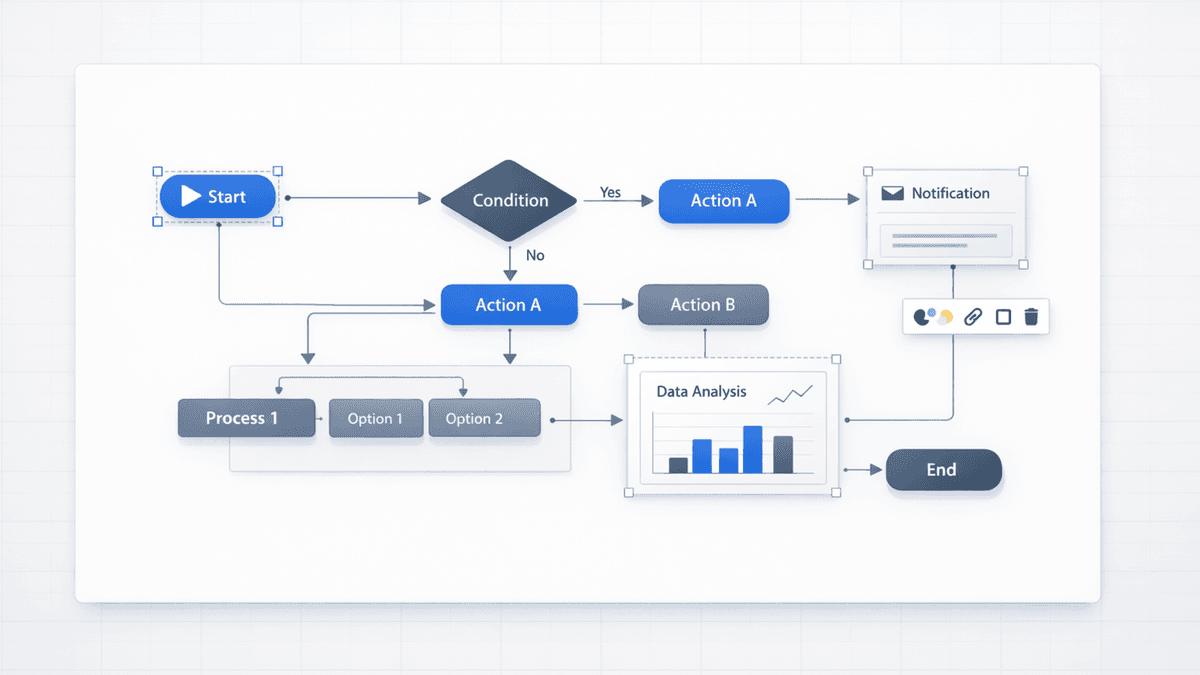
When Presentia.ai generates a presentation, it builds each slide from editable objects (text boxes, shapes, and images). That is the difference between a real editor and a generator that only produces images.
In Presentia, you do the real work in Edit mode: change copy, nudge layout, and adjust diagrams. Then you export a PPTX/PDF that matches the Preview render so stakeholders see exactly what you approved.
Output format comparison
Capability
PNG-only slides
Object-based editing (Presentia.ai)
Fix a typo 5 minutes before a meeting
Regenerate or re-create slide
Edit in Presentia (Edit mode), then re-export
Swap brand colors across multiple slides
Manual redesign per slide
Update styles/layout in Presentia, then re-export
Localization
Redo every slide image
Edit text in Presentia, regenerate previews if needed, then re-export
Reuse slides in another deck
Copying images degrades quality
Duplicate slides in Presentia and export again
When PNG-Only Output Is Actually Fine
PNG-only slides can be perfectly acceptable if you primarily need a static deck for sharing or presenting and you do not expect changes.
One-off conference talk slides where you will not reuse the deck.
Social sharing where slides are essentially images anyway.
A final version after the edit loop is finished.
If Editability Is Critical, Use This Practical Workflow
Generate the deck.
Switch to Edit mode and make your changes as objects (copy, layout, diagrams).
Regenerate the Preview render only for slides you changed (keeps visuals consistent).
Export PPTX/PDF for the version you send to stakeholders.
Real Examples Where Editability Is Critical
1) Last-minute changes
Your CEO changes the headline. A customer requests an updated metric. If the slide is a PNG, you are stuck. If it is editable, you adjust the text and move on.
2) Localization and regional versions
Teams shipping decks in multiple languages need editable text. PNG-only slides create an expensive rework loop for every region.
3) Brand and compliance tweaks
Spacing, type scale, colors, and terminology often change after review. Editable objects make these changes predictable and fast.
The Hidden Cost of PNG-Only Slides
PNG-only decks tend to look efficient until the first real change request. After that, every small update becomes a regeneration cycle, a re-layout task, or a manual redesign.
Change requests that happen in real teams
Change request
PNG-only slide impact
Object-based workflow impact
Rename a feature or metric
Regenerate / rebuild slide
Edit text, keep layout
Swap a logo or screenshot
Rebuild alignment and spacing
Replace image element, keep structure
Update a 4-step process to 5 steps
Regenerate diagram image
Duplicate a step shape + edit labels
Change color contrast for readability
Manual redesign
Adjust styles, regenerate preview if needed
How Presentia.ai Handles Quality and Editability Together
Presentia.ai gives you two layers: a high-fidelity AI preview render (Nano Banana Pro) for clean visuals in Preview mode, plus a fully editable object layer in Edit mode. Export when you are ready to share, and keep editing in Presentia if changes come in.
Use Preview mode to review the final look quickly.
Use Edit mode to make real changes (text, layout, diagrams).
Export PPTX/PDF when the deck is ready to share.
Example prompt that stays editable
Create a 10-slide business update deck for Q2.

Audience: leadership
Tone: crisp, minimal
Must include:
- 3 KPIs with placeholders for numbers
- A simple 3-step process diagram
- A 2x2 framework slide

Design constraints:
- High-contrast text containers
- No tiny text
- Keep diagrams as shapes and labels (not screenshots)