If you like Beautiful.ai's polished, template-driven approach but need more control over slide objects, visuals, and exports, this guide is for you. We compare Presentia.ai vs Beautiful.ai on editability, AI image quality, and the actual day-to-day workflow from prompt to finished deck.
The short version: you do not want a deck that only looks good in the app where it was made. You want a deck that stays editable when stakeholders ask for changes, and that exports cleanly into your existing PowerPoint workflow.
Presentia.ai vs Beautiful.ai: Side-by-Side Comparison
Feature comparison (high-level)
Category
Presentia.ai
Beautiful.ai
Editing model
Editable objects in the Presentia editor (text boxes, shapes, images).
Editing inside the Beautiful.ai app with smart templates.
PPTX export editability
Export PPTX/PDF optimized for fidelity (exports the Preview render when available). Make changes in Edit mode, then re-export.
Exports vary by plan and workflow; check current export behavior for your team needs.
AI visuals
Nano Banana Pro generates high-contrast, premium vector-style slide renders for Preview mode.
Beautiful.ai emphasizes clean design and smart layouts; AI/visual generation options depend on plan and features.
Best for
Power users who want both speed (AI preview) and control (editable objects + export).
Teams that want quick, consistent decks with minimal layout decisions.
If your deck must end up in PowerPoint, treat export behavior as a first-class requirement. Some tools produce great-looking slides, but the handoff to PowerPoint can be a friction point if slides are flattened or hard to edit.
Workflow: From Prompt (or Doc Upload) to a Finished Deck
A comparison is only useful if it matches the real workflow. Here is what generating with Presentia.ai looks like end-to-end, based on the actual product flow.
Presentia.ai workflow: enter text or upload a document, pick a template/theme, generate, preview, edit objects, export.
Presentia.ai generation flow (what happens in the app)
Add input: paste a topic/outline or upload a PDF/DOCX/TXT (text extraction, 4 MB max).
Pick a template and theme style (or let Auto choose a theme).
Generate slides progressively: copy is generated per slide, then converted into editable canvas elements.
Nano Banana Pro generates an AI preview image for each slide (Preview mode).
Export PPTX/PDF optimized for fidelity (matching Preview mode).
Export options depend on your plan and how your team shares decks.
Preview vs Edit in Presentia (why it feels different)
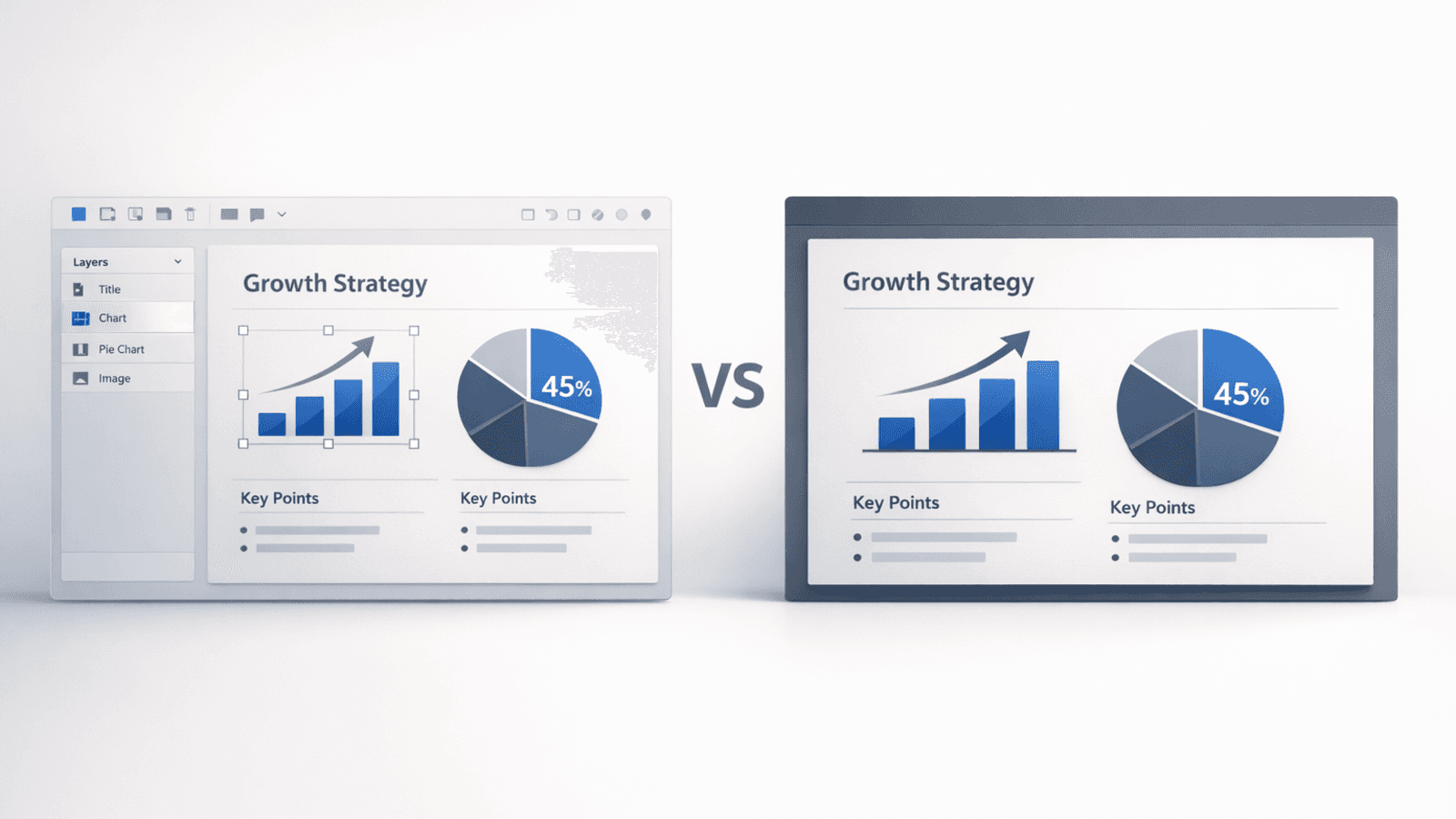
Most AI slide tools force a tradeoff: either you get a pretty render that is hard to change, or you get something editable that looks unfinished. Presentia splits the workflow into two clear modes so you can move fast without losing control.
Two modes, two jobs
Mode
What you see
Best for
Preview
Nano Banana Pro full-slide render (high-fidelity)
Fast review, stakeholder approvals, final export checks
Edit
Object layer (text boxes, shapes, images, tables)
Real changes: rewrite copy, adjust layout, edit diagrams
Prompt vs document upload: which input should you use?
If you already have source material, uploading a document is usually faster and more accurate than rewriting a prompt from scratch. If you only have a topic, a prompt is faster.
Use a prompt when: you are starting from zero, brainstorming structure, or exploring variants.
Upload a doc when: you have an outline, report, agenda, or notes you want reflected in slide copy.
Tip: include constraints like audience, tone, and required slide types (KPIs, process diagram, 2x2).
Editability: The Difference Between "Looks Good" and "Stays Editable"
Most teams do not lose time in the first draft. They lose time in the last 10%. That is where editability matters: last-minute numbers, logo swaps, localization, stakeholder feedback, and brand compliance.
What Presentia.ai does differently
It generates an AI preview image for high-fidelity viewing, but also keeps an editable object layer in Edit mode.
You can make real edits (rewrite copy, move elements, adjust diagrams) before export because slides are object-based in Edit mode.
Exports prioritize fidelity: what you see in Preview is what you get in the PPTX/PDF.
How to verify the export matches what you approved (2-minute test)
Generate the deck and review in Preview mode.
Export to PPTX and open it in PowerPoint.
Flip through 3 random slides to confirm the exported look matches Preview mode.
Make one small change in Edit mode, regenerate that slide’s preview image, then export again.
AI Image Quality: Nano Banana Pro vs Generic AI Slide Visuals
Presentia.ai uses Nano Banana Pro to generate premium vector-style slide renders designed for readability and business storytelling. The goal is not to "add art". The goal is to make the slide easier to read and more persuasive.
Instead of forcing you to choose between "editable but boring" and "beautiful but flattened", Presentia aims to give you both: an editable object layer and a high-fidelity AI preview render.
In Presentia, Preview mode is optimized for fast review and pixel-perfect visuals. Edit mode is optimized for control: move objects, rewrite copy, and keep diagrams maintainable. After edits, you can regenerate the AI preview for that slide so the polished render stays in sync.
Preview mode: high-fidelity, full-slide Nano Banana Pro render.
Regenerate: update the AI preview image after you change the slide structure.
What Nano Banana Pro optimizes for
Nano Banana Pro is optimized for slide readability: strong hierarchy, high contrast, and clean business visuals that support the message instead of distracting from it.
Readable composition: clear focal point, not clutter.
High contrast containers for text-heavy slides.
Consistent, premium vector-style aesthetics across the deck.
Business-friendly visuals for frameworks, processes, and summaries.
How to get higher-quality results (without longer prompts)
Name the audience and outcome (what should the audience do after the presentation?).
Specify slide types: KPI, process flow, 2x2, timeline, next steps.
Set readability constraints: no tiny text, strong section headers, high contrast.
After generation: make edits in Edit mode, then regenerate only the slides that changed.
Prompt template (works well for business decks)
Create a 10-slide presentation about: [TOPIC]

Audience: [WHO]
Goal: [WHAT YOU WANT THE AUDIENCE TO DO]
Tone: minimal, high-contrast, executive-ready

Must include:
- 3 KPI slides with placeholders
- 1 process diagram slide (3-5 steps)
- 1 framework slide (2x2)
- 1 closing slide with next steps

Constraints:
- No tiny text
- Use clear section headers
- Keep diagrams as shapes + labels (editable)
Checklist: Evaluating a Beautiful.ai Alternative
If you are switching tools, run a quick evaluation using one of your real decks (not a toy example). These checks surface most workflow pain early.
Time-to-first-draft: how long from paste/upload to a coherent 10-slide deck?
Edit loop: can you make 5 real changes without fighting the tool?
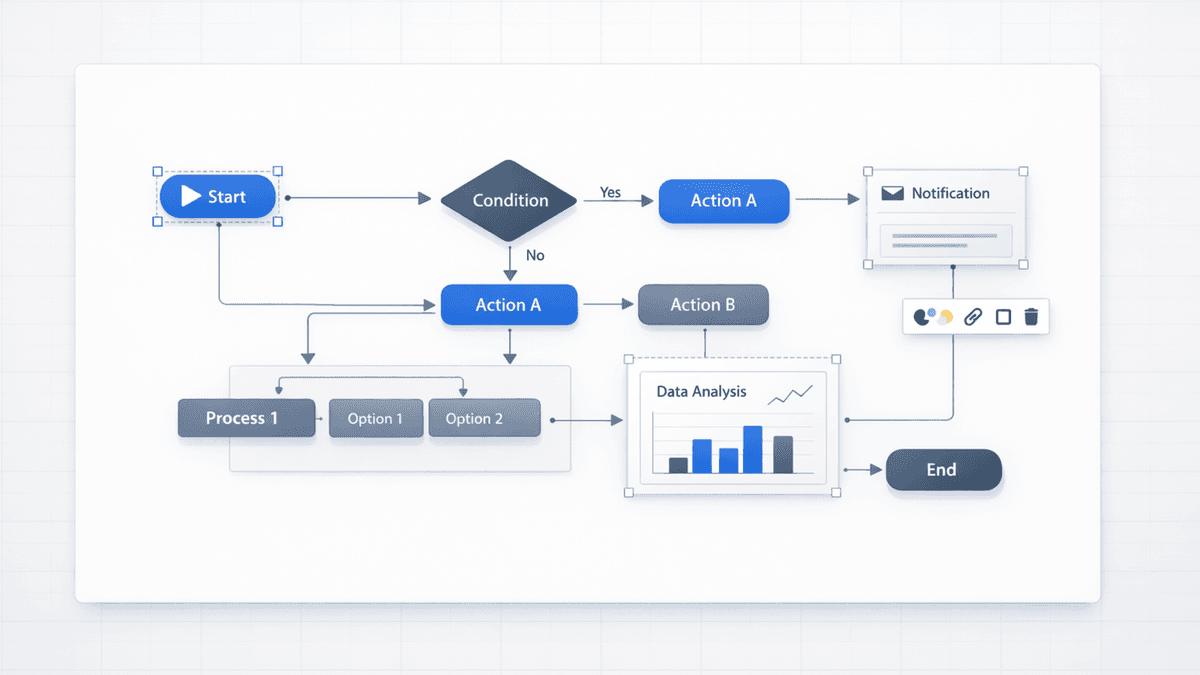
Diagram test: can you build a 3-step flow with editable shapes and labels?
Brand test: can you adjust colors and typography without breaking readability?
Handoff: does the exported PPTX/PDF match the preview you approved?
Pricing and Trial: What to Check Before You Commit
Pricing changes. The only fair comparison is to point you to the right questions, plus the trial lengths you can verify quickly.
Trial and pricing notes (verify current before purchase)
Item
Presentia.ai
Beautiful.ai (as of Feb 24, 2026)
Trial
7-day free trial (see pricing section).
14-day trial.
Pro pricing
See pricing section for current plan details.
Pro is listed at $12/month billed annually.
Team pricing
See pricing section for current team details.
Team is listed at $40 per user/month billed annually (or $50 per user/month monthly).
Where Presentia.ai Wins (and Where Beautiful.ai Might Be Better)
Presentia.ai is usually better when you need:
Editable object-level control after generation (text boxes, shapes, images).
A fast edit loop: make changes in Edit mode, regenerate the preview, and export again.
High-fidelity AI preview renders (Nano Banana Pro) that stay readable.
Beautiful.ai may be a better fit when you want:
A more template-constrained workflow with less layout decision-making.
A tool your team can standardize around for consistent-looking decks.
The right answer depends on where your bottleneck is. If your bottleneck is design consistency and governance, template constraints can help. If your bottleneck is iteration speed and editability, an object-based edit loop plus export fidelity usually wins.
Decision Guide: Which One Should You Pick?
If you are evaluating a Beautiful.ai alternative, the simplest way to decide is to look at what breaks in your current process: design consistency, or iteration speed.
Fast decision guide
If you care most about...
You will probably prefer...
Strong template guardrails and consistent formatting
Beautiful.ai
Editing flexibility after generation (objects, diagrams, layout changes)
Presentia.ai
Pixel-perfect final exports that match what you approved
Presentia.ai
Reducing layout decisions for the whole team
Beautiful.ai
Both tools can produce professional decks. The question is which tradeoff you want to make. Presentia leans toward: generate fast, edit objects, then export a faithful final. Beautiful.ai leans toward: smart templates and consistency first.
Try Presentia.ai (Best Next Steps)
If you want to test Presentia against your current workflow, do this in 10 minutes:
Generate a deck from a real outline (or upload a PDF/DOCX/TXT) using a professional template.
Switch to Edit mode and make 3 real changes (numbers, brand color, and layout).
Regenerate the preview for one edited slide, then export and verify the deck matches Preview mode.
Can I generate from a document instead of writing a prompt?
Yes. You can upload a PDF/DOCX/TXT and Presentia will extract the text (4 MB max) so you can generate slides from real content.
Can I edit slides after the AI generates them?
Yes. Presentia keeps an editable object layer in Edit mode so you can rewrite text, move elements, and adjust diagrams. You can then regenerate the AI preview image for the slide to match the updated structure.
Is the exported PowerPoint editable?
Presentia’s export is optimized for fidelity, so the PPTX/PDF matches the Preview render. If you need to change content, edit in Presentia (Edit mode), regenerate the slide preview if needed, then export again.