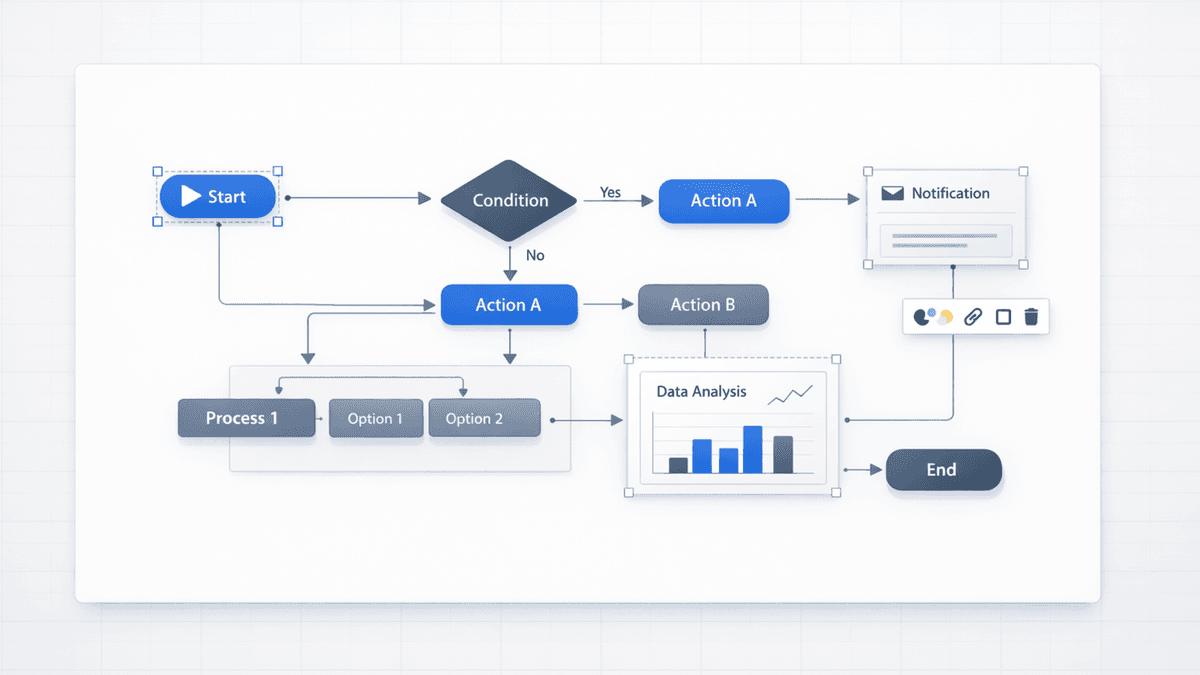
If you want an editable Nano Banana Pro presentation (not just nice-looking slides), use a workflow where you can refine text, shapes, and layout in-app before exporting .pptx.
Many tools generate Nano Banana Pro visuals, but export them as flattened PNG images inside PowerPoint. That looks fine until you need to fix a label, swap a color, or update a number.
Current Presentia Workflow (Updated February 24, 2026)
Current workflow checkpoints
Step
Where in UI
What happens
1. Input
TwoStepHero
Prompt or document text is prepared for generation.
2. Generation
/generate
Slides are created progressively with visible generation progress.
3. Finalize
Edit/Preview + Export
Refine in Edit mode, then export PPTX or PDF from the toolbar.
Key points visual: generate, refine, and export process.
What “Editable Nano Banana Slides” Means (In Plain English)
An editable slide lets you change the parts inside the visuals—not just move a big image around.
Here’s the simplest way to tell what you’re getting:
30-second test
If it’s editable
If it’s not
Click a chart label
You can edit the text
It’s baked into an image
Select one bar/shape
It selects as a separate object
The whole thing selects at once
Change one color
Only that element changes
You can’t change it (or everything changes)
Rearrange a diagram step
You can drag individual pieces
You have to regenerate the slide
If you consistently hit the “whole slide is one picture” problem, you’re not doing anything wrong—you’re using a PNG-based export.
Why Nano Banana Pro Is Popular for Presentations
Presentations aren’t just “pretty images.” They’re full of structured visuals:
Charts with readable labels
Flowcharts and processes
2×2 matrices and frameworks
Infographics with callouts
Nano Banana Pro is popular in this niche because it’s designed to generate visuals that behave like “slide graphics” (not just art). That’s especially useful when you’re building business decks, research decks, or anything where labels and layout matter.
Best Tool for Editable Nano Banana Pro Presentations: Presentia
Presentia combines Nano Banana Pro visuals with a generate -> refine -> export workflow:
Export a real .pptx (not flattened images)
Edit text, shapes, charts, and layout in Presentia Edit mode before export
Apply brand colors and fonts without starting over
That matters because “generation” is only the first 80%. Most real decks still need edits.
Presentia vs Manus (Editability Depth)
Both tools aim for editable Nano Banana Pro slides. The difference is how far refinement goes before export and how stable exports remain after hand-off.
Capability
Presentia
Manus
Text editing
Full control
Some limitations depending on slide
Element-level recolor
Yes
Often theme-first / more constrained
Free layout changes
Yes
More constrained in complex layouts
Export behavior in PowerPoint
Designed for .pptx editing
Can vary by slide/content
Free trial
7-day trial
Varies / often paid-first
Note: Competitor capabilities can change quickly. If you’re evaluating, the best test is exporting a deck and trying 10 minutes of real editing.
When Full Editability Actually Matters
If you only need a “good-looking draft,” PNG exports can be fine. But if any of these are true, editability becomes non-negotiable:
You present to investors/leadership and numbers change late
You have brand guidelines (colors, fonts, logo placement)
You hand off decks to teammates or clients
You need multilingual slides with clean labels
You reuse decks quarter-to-quarter and iterate on visuals
How to Make an Editable Nano Banana Pro Presentation (Workflow)
Topic: QBR for a B2B SaaS team Audience: exec team Slide count: 12 Must-include visuals: pipeline funnel, churn drivers chart, 90-day roadmap timeline, competitive 2×2 Brand: primary color #8E36E6, clean white background
2) Generate with Nano Banana Pro enabled
Generate the deck, then regenerate only the slides that miss the mark (don’t restart the whole thing).
3) Export .pptx and finalize in Presentia Edit mode before export
Do your real work in the editor:
Fix copy
Update numbers
Recolor key visuals
Adjust spacing and alignment
FAQ
Can I edit Nano Banana Pro slides in Google Slides?
If you export .pptx, you can import into Google Slides. Editing depth can vary depending on the elements and how Slides handles them, but .pptx is the right starting point.
Why do some tools say “editable” but still feel locked?
Because the slide might only be “editable” at the container level (you can move the picture), while the contents are still a flat image.
What’s the fastest way to confirm editability before committing?
Export a deck and run the 30-second test above. If you can click individual chart elements, shapes, and labels, you’re in good shape.